
Admin powers for everyone !
Imagine the following scenario :
Your customer’s CEO has seen the proverbial light and instead of being the M365 lemming that everybody else is, he’s heard of Calendly; a nice app that allows meeting requests to be made under your M365 tenant in a way more covenient way than the default Microsoft Bookings can do.
So being the good customer that he is, he just clicks on the “log in with your M365 credentials” button and clicks next-next-next, granting this app access to calendars and whatnot.

… were it not that (luckily) your M365 environment blocks this behaviour by default for non-admin users, so (if you did your homework, as an IT implementor), your customer’s CEO does not have an admin role on his production account.
The quick-and-dirty solution would be to grant the user temporary rights to install the app, after which you take away his rights.
Any update on the app would require you to do the same.
Wouldn’t it be nice…
As the Beach Boys already suggested in 1966, it would be nice … to handle this whole situation in a more structured way, because nothing screams chaos more than this sort of procedures.
An ideal situation would be that your customer automatically created a support ticket in your organisation’s helpdesk software, whereas he requests access to this app be granted to him.
After you verify if this app is trustworthy.
Well… that’s possible.
The feature is called “Admin consent workflow” and I’ll show you how to quickly configure this, so your support team gets a hassle-free notification.
First of all, turn on the feature in the following menu :
Entra.MIcrosoft.com > (the entra admin center, where you log in as admin)
Enterprise Apps >
Consent and Permission >
Admin consent settings.
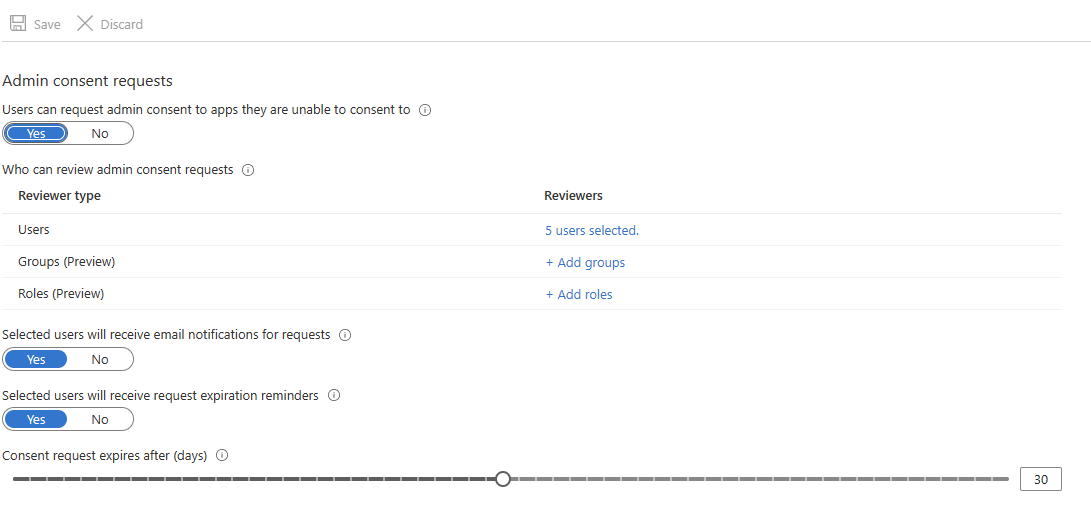
This will allow you to pick users (or specific groups or even roles) to be notified, by mail, that user X wants to install company app Y .
Seeing as most helpdesk systems support mail-to-ticket , that already solves your ticketing system automation, by adding that support mailbox to the notifications, allowing you to receive this request in your ticketing system. ✅
The next and most logical step is to do something with this notification as a support engineer/admin.
Easy enough:
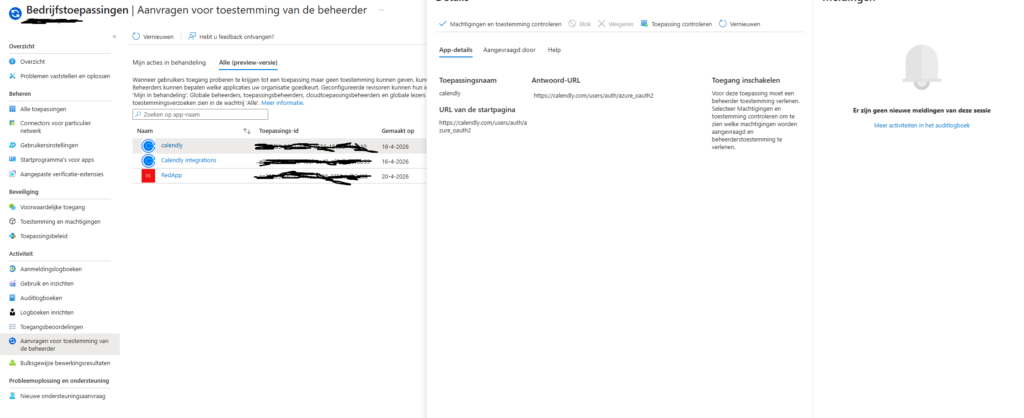
Open that very same entra admin page and go to …
Enterprise Apps >
Activity >
Admin Consent Requests (or “Aanvragen voor toestemming van de beheerder” as it is so beautifully stated in the Dutch version)
The screenshot above shows you the approval list under “My pending” , where you can either Approve, Deny or Block the request.
The following Microsoft article explains in more detail what the 3 actions have as consequence :
https://learn.microsoft.com/en-us/entra/identity/enterprise-apps/review-admin-consent-requests
…but judging by the names of the three options, I guess you can already tell.
Don’t Hassle the Hoff
In a small environment of 5 users, this procedure is to be handled perfectly easy.
In a 300+ users environment, this becomes quite a hassle.
There’s somewhat of an inbetween automated solution to making your admin life easier.
“User consent settings”, to be found on…
Entra.MIcrosoft.com > (the entra admin center, where you log in as admin)
Enterprise Apps >
Consent and Permission >
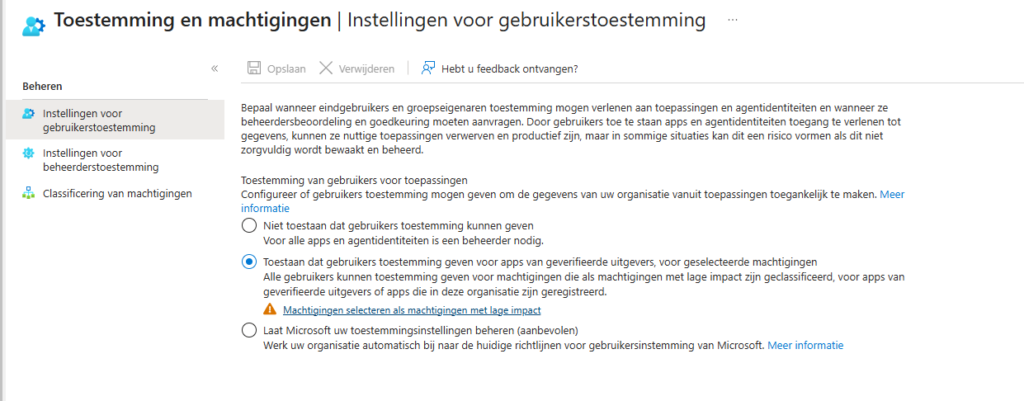
And yes, again with the Dutch :p
This inbetween option allows you to choose the “sweet spot” for your admins, where you get to decide – based on a classification system – what apps are allowed by default.
Clicking that link under “allow user to …” or clicking on “classifications…”
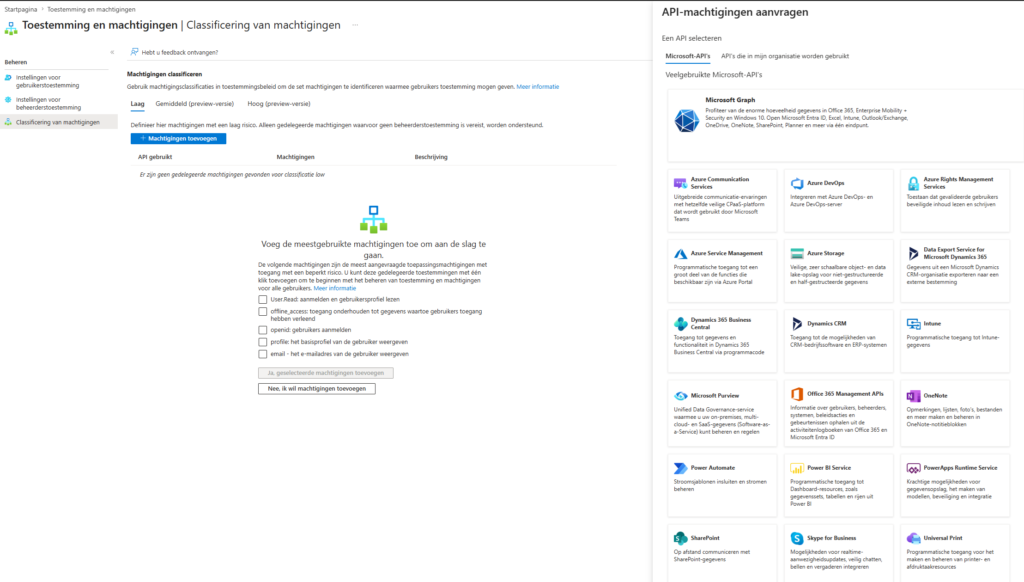
… you can decide either default rights to be allowed (such as user:read) for any app or pick a trusted API from the list, so next time a user wants access to that specific API or picks an app with very limited rights, they can go all out.
I’m gonna leave you with figurig out how to define Low, Medium and High classifications yourself, but seeing as you made it to the end of this article without falling asleep, I’m confident you got this !
See any mistakes in this article or have suggestions ?
You know how to contact me !